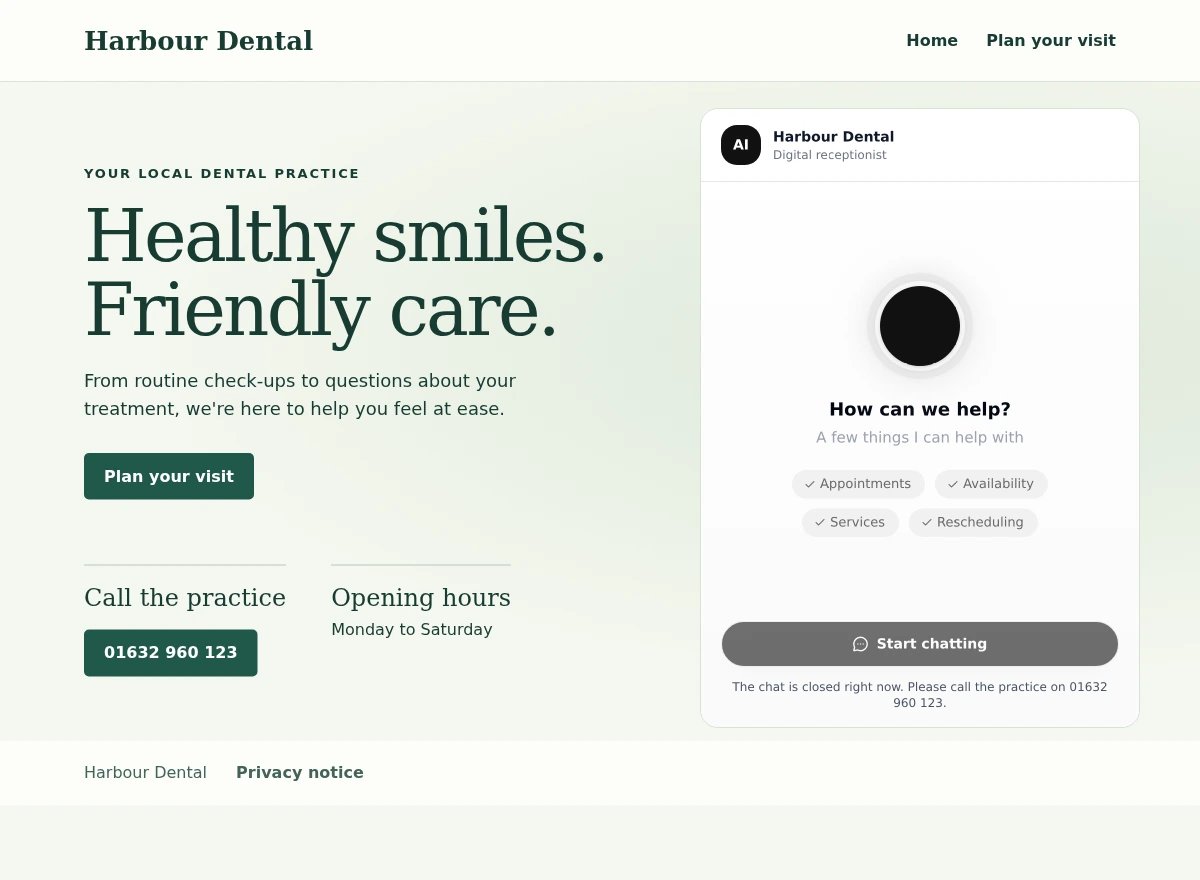
What patients see
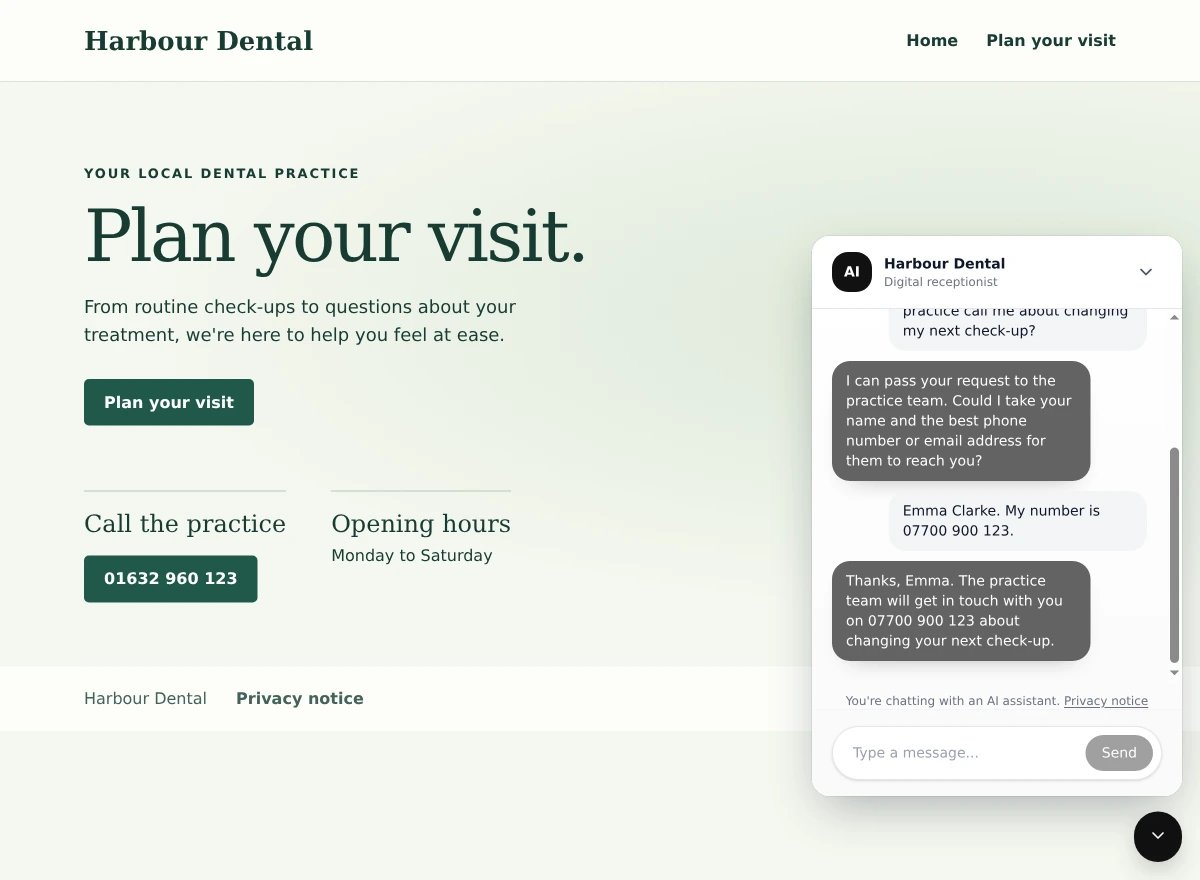
Patients open the chat from a button on your website. They see your greeting, a line that tells them they’re writing to an AI assistant, and a link to your privacy notice if you’ve added one. They can use a suggested reply or type their own question.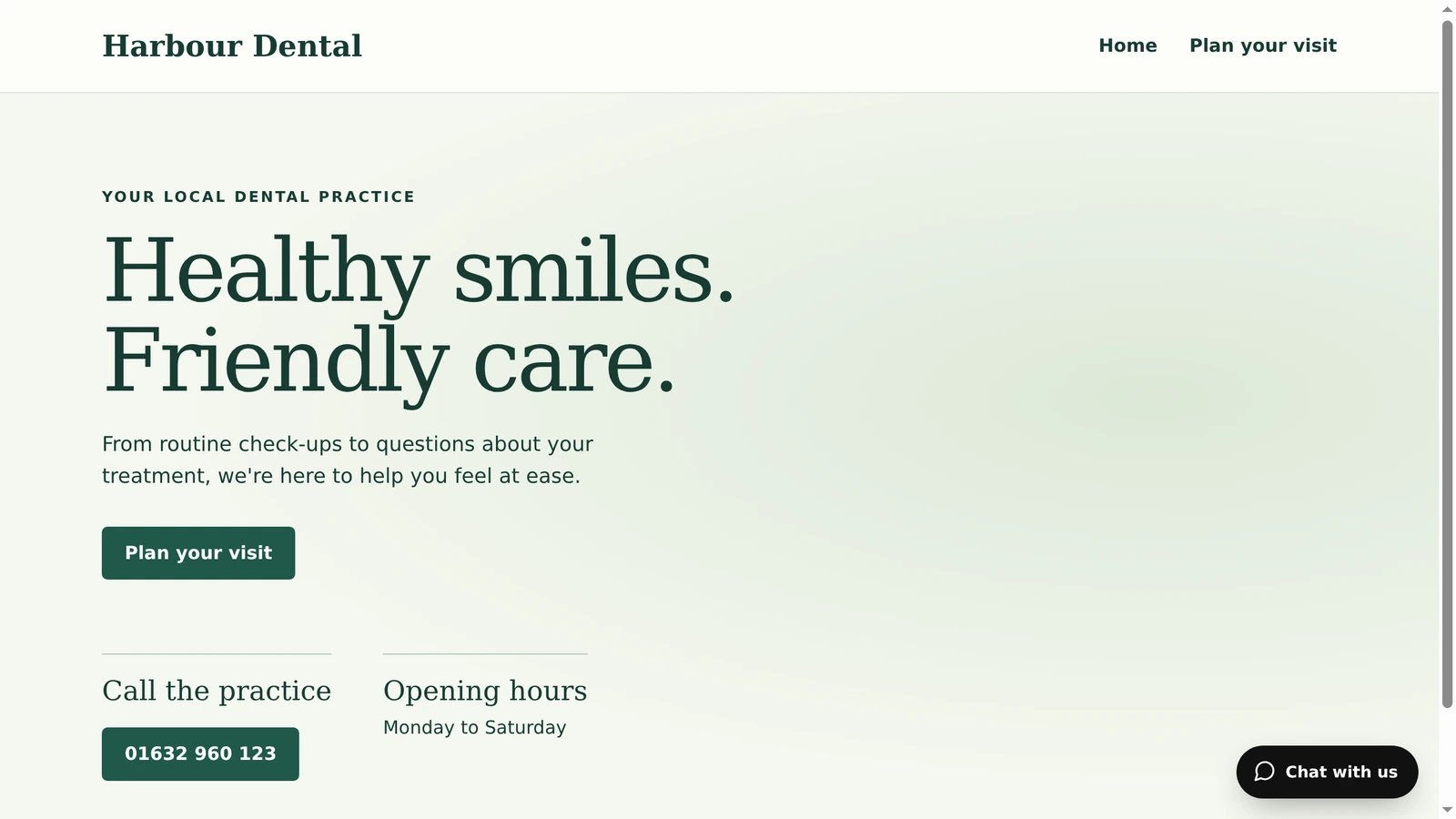
What your receptionist can do
- Answer questions about your practice, such as when you’re open or how to find you.
- Book, move or cancel appointments in your diary if you turn bookings on. If bookings are off, your receptionist passes those requests to your team instead.
- Pass other requests to your team as a task. For example, it can take details for a call back or pass on a question it can’t answer.
Read chats in Conversations
Open Conversations to see chats alongside calls. Choose Website chat above the list to see only chats. Search by patient name or by words in the summary. If the patient didn’t leave a name, the chat shows Website visitor. Open a chat to read its messages. Your receptionist’s replies are labelled with its name. The summary and outcome appear after the chat ends, 30 minutes after the last message. If the chat created a task, choose Open task to see what your team needs to do.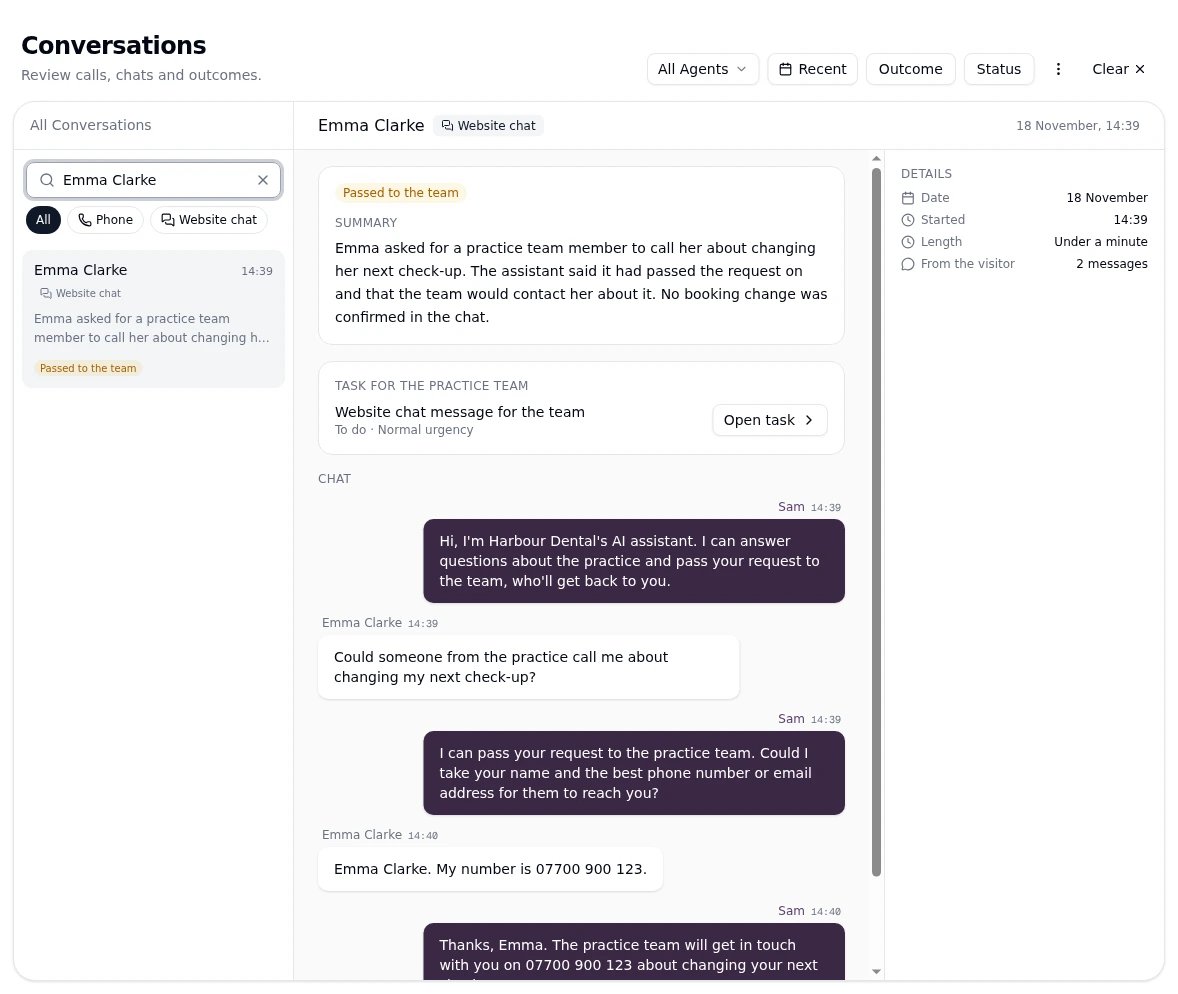
Outcomes
Follow up on tasks
Your receptionist creates a task only after the patient leaves their name and a phone number or email address. If they leave without those details, you can still read the chat in Conversations, but there’s no task. Open Tasks to see who to contact and what they asked for. Choose View under Website chat to read the conversation. Follow up by phone or email, not in the chat. When you’re done, choose Mark as Complete.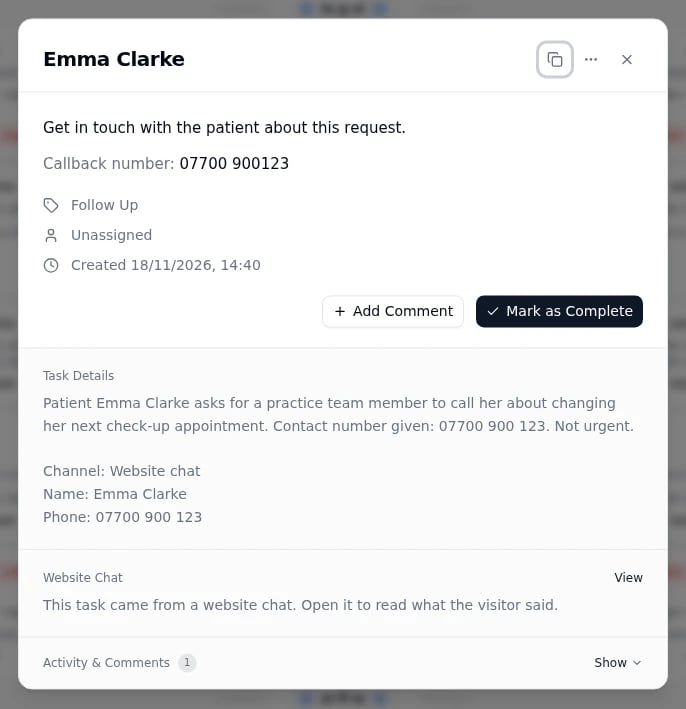
When the chat is off or paused
The chat button disappears from your website. This can take about a minute. If a patient already has the chat open, or if the chat sits inside a page, they see a message asking them to call. The message includes your practice phone number if you’ve added it. Pausing chat doesn’t affect phone calls.